A few friends have asked how I use LLMs to write code these days, so I decided I’d write this blog post to share my current setup. There may be better ways to use them, but this is what I found works well for me.
First of all, I use the $100/mo Claude Max subscription. I’ve heard that OpenAI’s Codex works pretty well these days too, though I haven’t evaluated it lately. Last time I evaluated Gemini/Antigravity, it was complete garbage for writing code and a waste of time; this may or may not be the case anymore.
The $20/month subscriptions from Anthropic and OpenAI might work as well for lighter use. I frequently brush against the five hour limit, your mileage may vary.
Currently, in 2026, frontier models significantly outperform locally hosted models for agentic software development. This may change in the coming years, but today, subscriptions are the way to go. Of course, if you have money, you could run say Kimi K2.6 locally. At 1 trillion parameters, it’ll take over 512GB of memory, you’ll need at least two 512GB Mac Studios or four 256GB Mac Studios — which are now unavailable due to the RAM shortage, but even prior to that the 512GB ones were listed for $9,500 each — and still run at a slower speed than cloud hosted models.
You can use either the desktop version of Claude code or the CLI one. I used the CLI one a lot more in the past, but the desktop one makes it much easier to run multiple sessions in parallel.
Anthropic doesn’t currently ship a desktop version for Linux, so you’ll need claude-desktop-debian if you’re on Ubuntu/Debian.
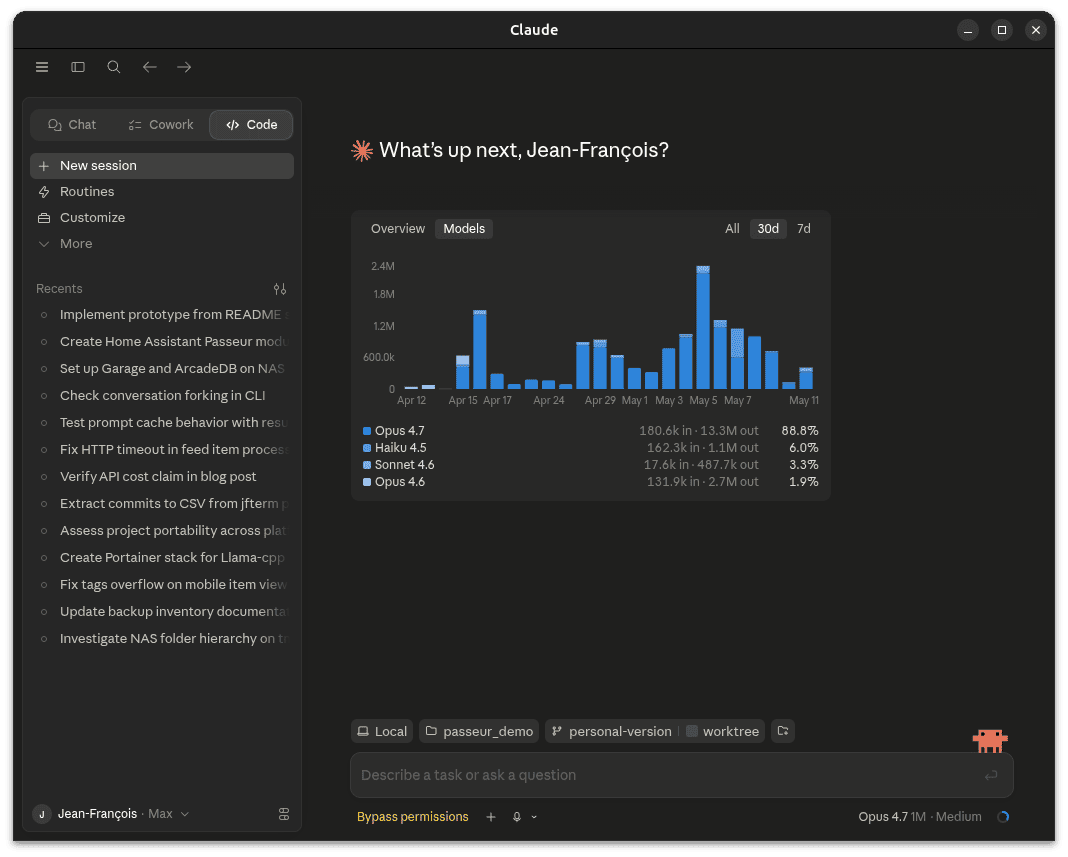
The first thing to do is to install a few plugins by clicking customize or /plugins in the CLI. The superpowers one makes it so that when talking about a new feature, Claude will enter brainstorm mode and ask clarifying questions about what is being built, then propose a plan. You should definitely push back on the plan if it’s not what you want, or if it’s missing something. Context7 and a LSP for your language are also pretty useful.
By default, Claude will run in permissions restricted mode, which means it’ll constantly bug you about permissions for anything more than editing a file in the project directory. Build the project? Prompt. Run the linter? Prompt. Curl for the documentation for a library? Prompt. In practice, you probably want to run in either “Auto” or “Disable permissions” mode.
This also means that Claude can run pretty much whatever on your computer, so if someone on the internet writes that to install libfoo you should do rm -rf / it might actually do it.
So now that we have our environment set up, it’s time to create a project. To do so:
- Create a project on github (I’ll use cham-chrome-extension for this demo)
- Create an empty directory on your computer and run
git initin it
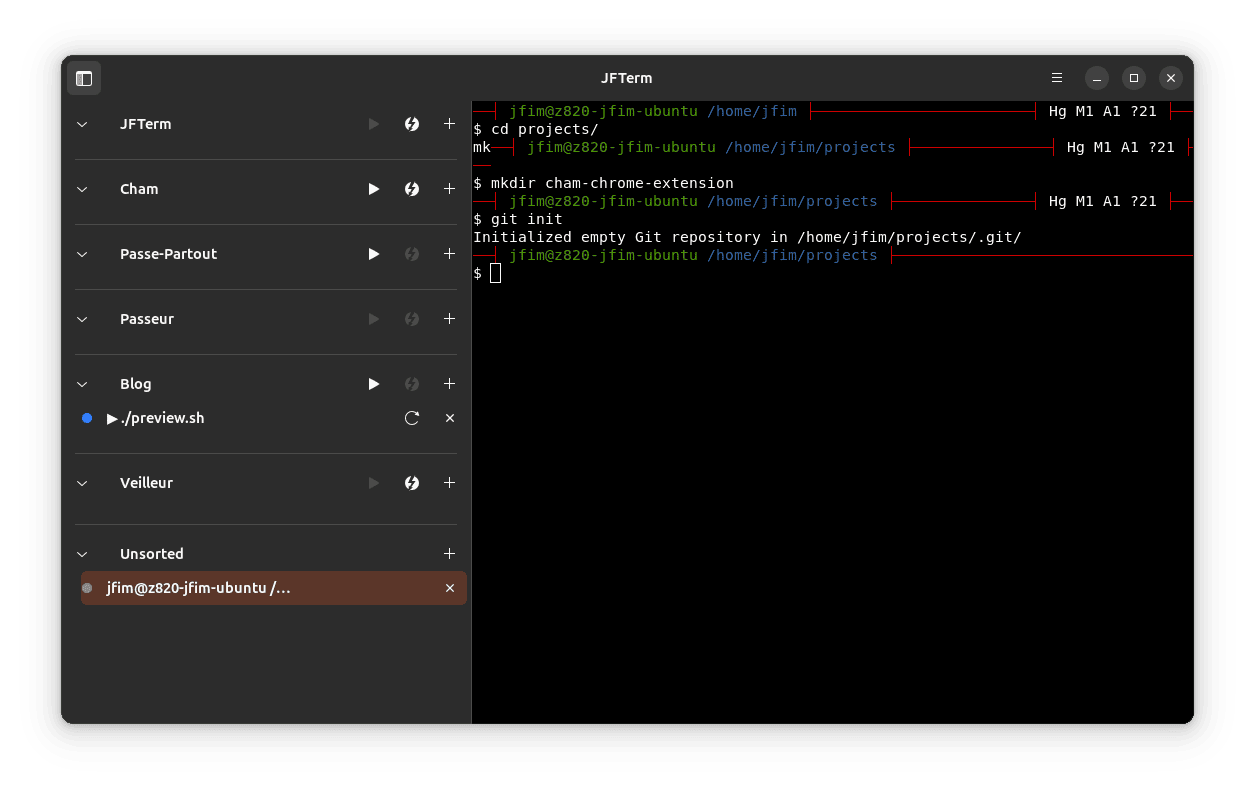
With that, it’s time to prompt the LLM to start writing code.
Another approach is to write a more detailed markdown document and ask the LLM to read it. This is a better approach if what you want is a bit too long to fit in just a simple text box, unlike what this demonstration project requires.
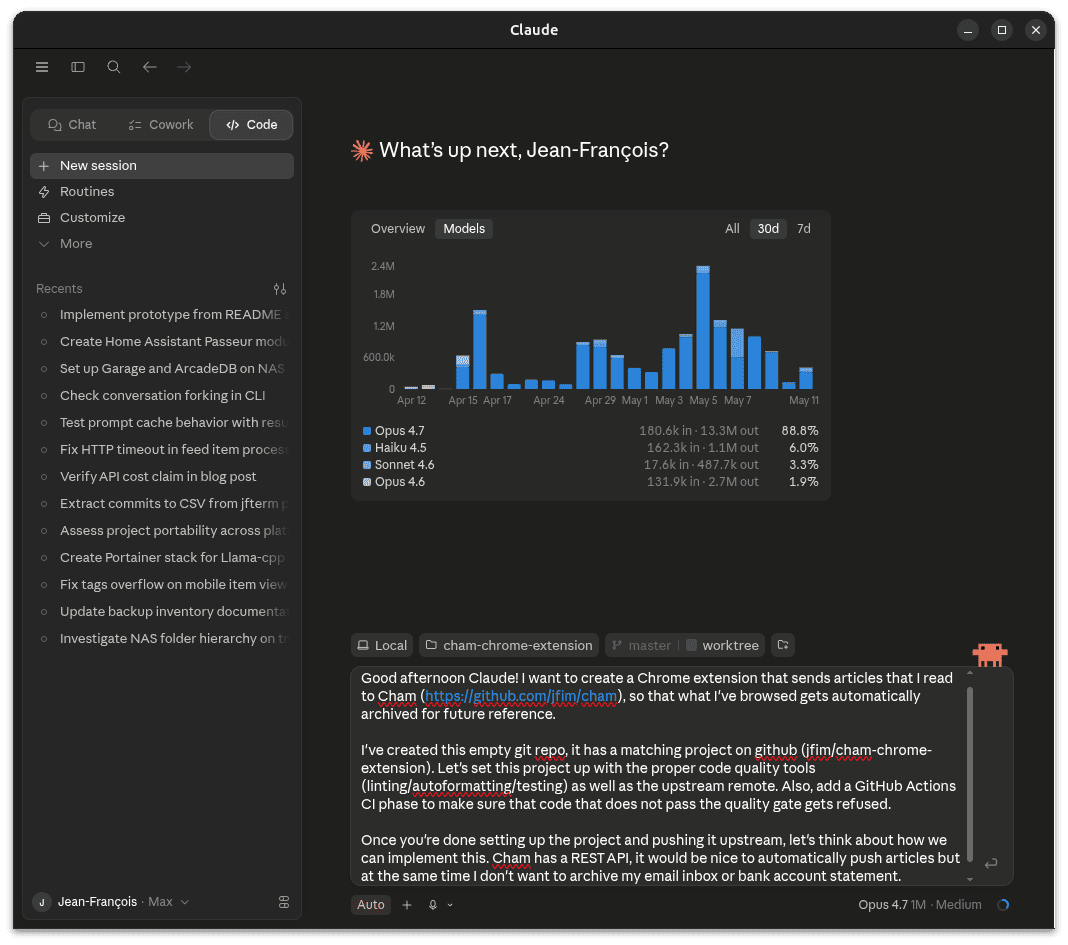
It’s usually a good idea to have at least some basic quality control like linting, auto formatting, and testing right off the bat. LLMs are pretty good at fixing errors when they are pointed out to them, so this makes sure that the code is at least formatted correctly and covered by tests.
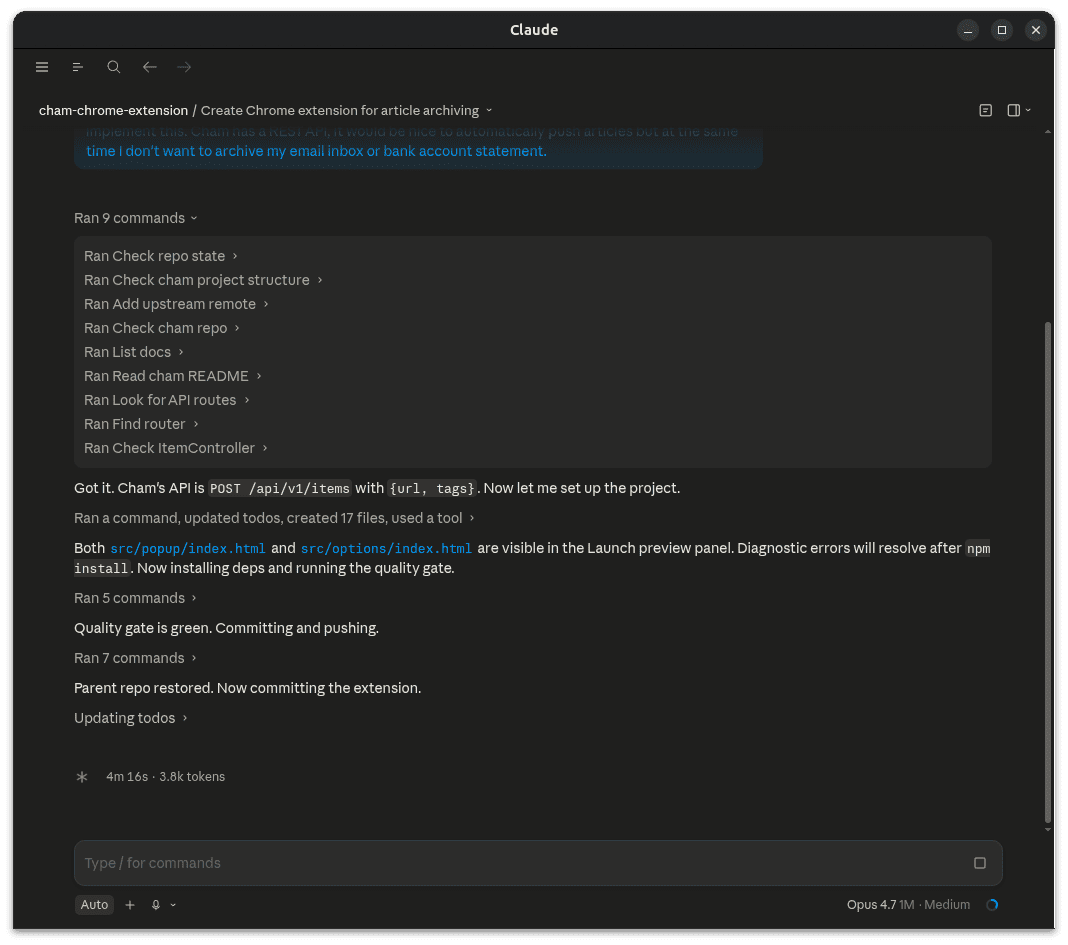
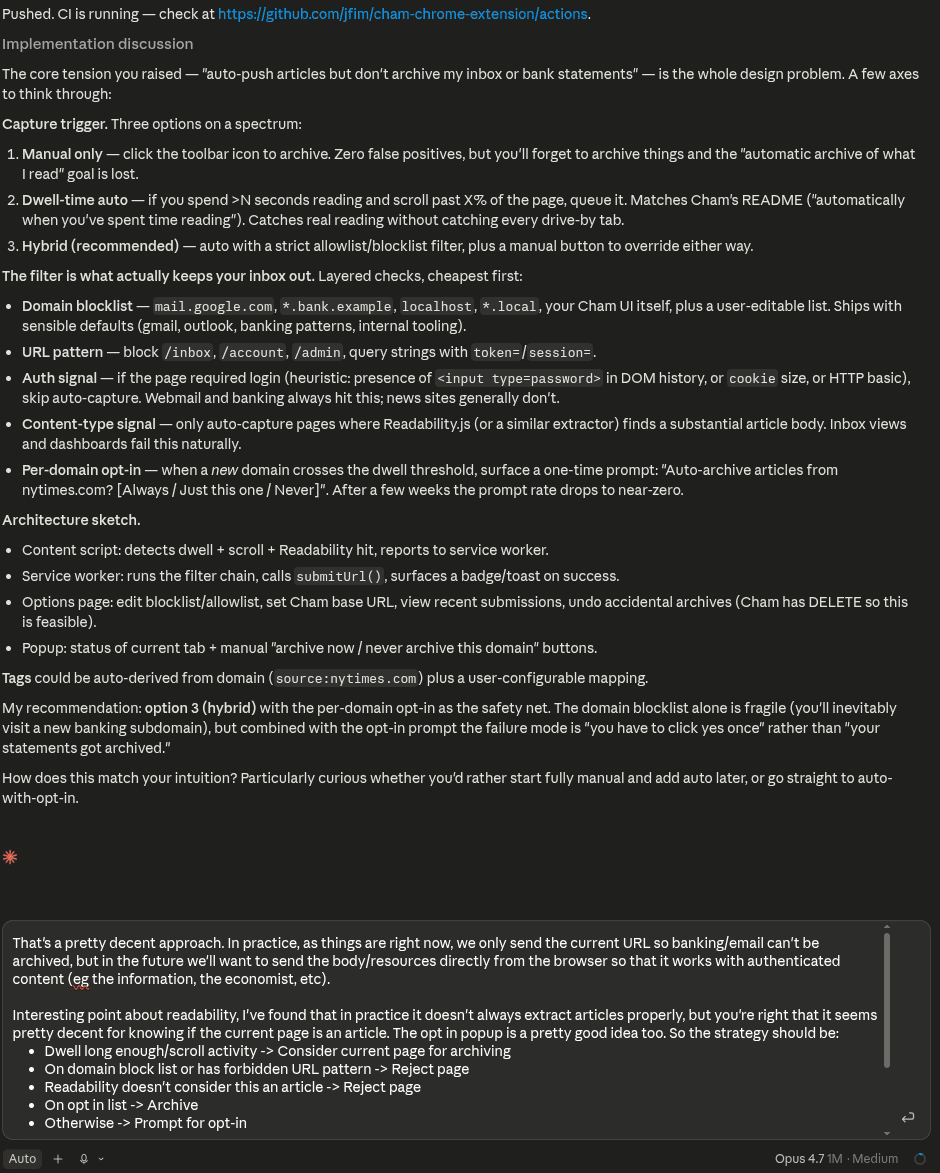
After some back and forth, it’ll generate a plan, then actually implement it.
And there you have it. I’ve put in the transcript for the demo project I have in this blog post, as well as the implementation plan it generated. Let me know if this works for you, or if you use different techniques that work for you.